
TL;DR
- Firefly's runners can now authenticate to Google Cloud using Workload Identity Federation (WIF) instead of a stored service account key, issuing a short-lived OIDC token at execution time that Google Cloud exchanges for temporary credentials.
- Firefly never stores a static Google Cloud key, closing a specific, well-documented risk category: long-lived credentials that are hard to rotate, easy to leak, and often over-permissioned for their use.
- Setup runs in two parts across five distinct steps in Google Cloud plus a short configuration pass in Firefly, roughly 15 minutes plus whatever time it takes to secure the right IAM permissions.
- Two specific misconfigurations account for most setup failures: skipping the project-level IAM role grant (federation works perfectly, but every run still fails) and setting credentials or GOOGLE_CREDENTIALS in Terraform, which silently overrides OIDC with no error.
- Configuration works at the project level (inherited by every sub-project and workspace) or the workspace level (granular, per-workspace control), across Terraform, OpenTofu, and Terragrunt runs alike.
Static credentials have quietly become one of the most common ways cloud environments get compromised, not through a sophisticated exploit, but through a key file that sat somewhere it shouldn't have, unrotated, over-permissioned, and valid indefinitely. Cloud providers have spent the last few years pushing hard in the opposite direction: short-lived, federated identities that exist only for the duration of a single action and leave nothing behind to leak. Firefly's runners now support that model for Google Cloud directly, authenticating through Workload Identity Federation instead of a stored service account key.
This piece walks through what that actually means in practice: why a stored key is a specific, well-understood risk category rather than just a vague best-practice concern, exactly how the token exchange works under the hood, the full step-by-step setup across both Google Cloud and Firefly, and the specific misconfigurations that trip people up, including one that fails completely silently. By the end, you'll have a working GCP OIDC setup and a clear sense of what to check if a run doesn't behave the way the documentation says it should.
The Basics of OIDC and Cloud Authentication Without Static Keys
OpenID Connect (OIDC) is an identity protocol built on top of OAuth 2.0. At its core, it lets one system prove who it is to another by presenting a signed, verifiable token instead of a shared secret, the receiving system checks the token's signature and a handful of standard claims (who issued it, who it's for, when it expires) against a trusted identity provider, and if everything checks out, it trusts the request without a password or key ever having been exchanged in advance. Workload Identity Federation is Google Cloud's specific implementation of that idea, extending it from the usual case of a person signing into an app to a workload, in this case a Terraform runner, proving its identity the same way.
A stored service account key is a JSON file containing long-lived credentials that grant whatever permissions the account has, until someone manually rotates or revokes it. That's the model most Terraform setups against Google Cloud have used for years: generate a key, store it somewhere a CI/CD pipeline can reach, and hope it doesn't leak. This model is a well-documented risk category on its own. A static key doesn't expire on a schedule; it sits valid until someone remembers to rotate it. It's a file, which means it can be accidentally committed to a repository, left in a CI log, or copied somewhere it shouldn't be. And because rotating it is manual work most teams deprioritize, the permissions attached to it tend to accumulate over time rather than staying scoped to what's actually needed.
OIDC authentication through Workload Identity Federation removes the file entirely. Instead of a credential that exists indefinitely, the runner requests a short-lived OIDC token when it needs to act; Google Cloud validates that token, exchanges it for temporary credentials, and the runner impersonates a service account for the duration of that run. There's nothing sitting on disk to leak, and nothing to remember to rotate, because there's no long-lived secret in the first place.
Why This Is Worth Doing for IaC Execution
A stolen application credential is bad. A stolen Terraform runner credential is frequently worse, since IaC execution typically needs broad permissions across an entire project or organization, the ability to create, modify, and delete resources at scale, not the narrow, read-mostly access a typical application service account gets scoped to. That combination, broad permissions plus a long-lived, static credential, is exactly the profile that makes a compromised key catastrophic rather than merely inconvenient.
This is the same underlying argument behind credential isolation for backup infrastructure, covered in more depth in this site's guide to ransomware disaster recovery: a control that exists on paper but was never actually verified, or a credential that's technically scoped but practically over-permissioned, tends to be discovered as a gap only after it's already been exploited.
How the Token Exchange Actually Works
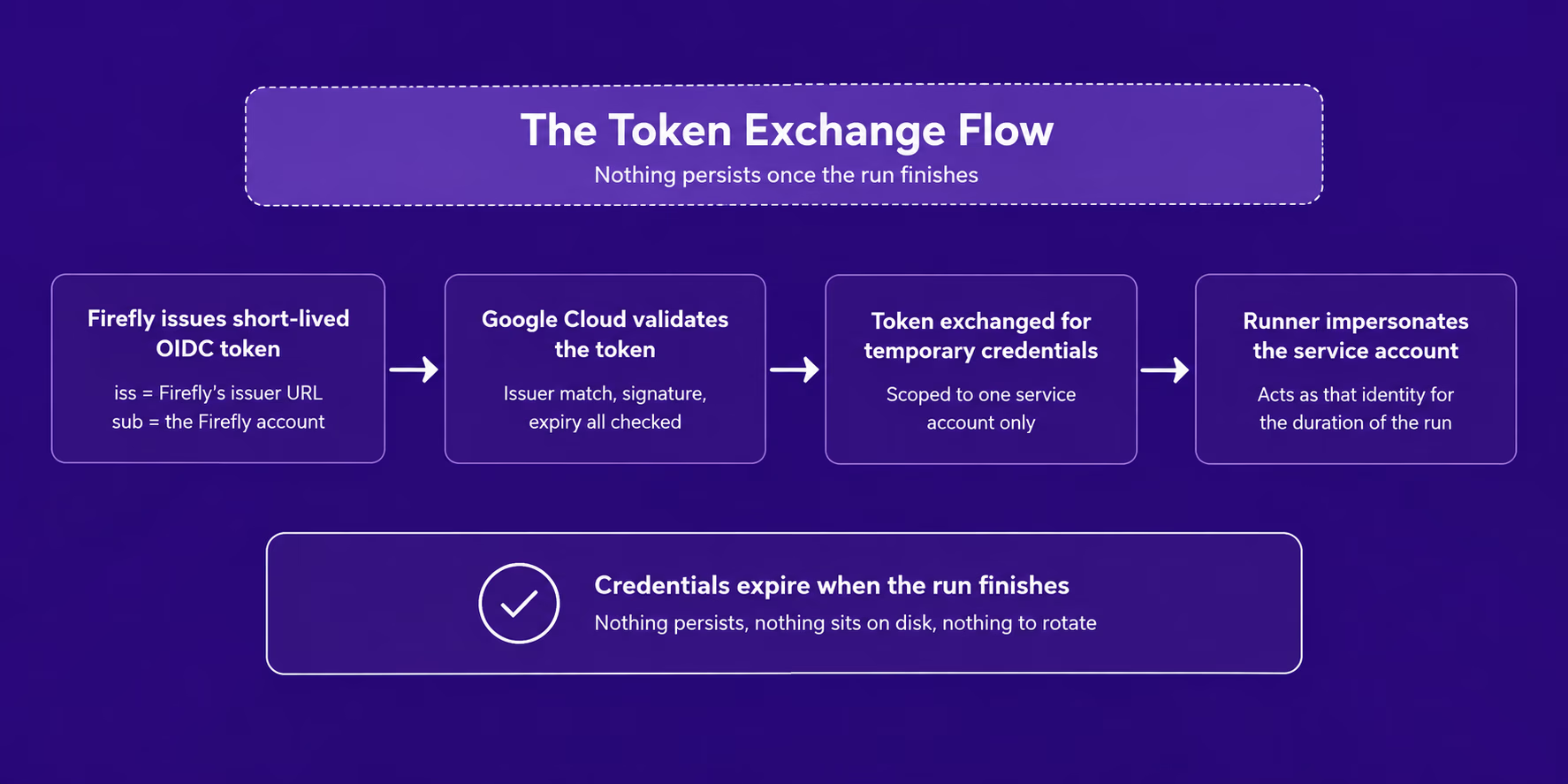
The flow behind GCP OIDC involves a real token with real claims, not just an abstract "authentication happens" description. At execution time, Firefly issues a short-lived OIDC token whose iss (issuer) claim is set to Firefly's own issuer URL, and whose sub (subject) claim identifies the specific Firefly account making the request. That token gets presented to Google Cloud's Security Token Service, which validates it against the workload identity pool provider registered for your account, checking that the issuer matches, the token's signature verifies, and the token hasn't expired. Since Firefly's issuer is publicly reachable, Google Cloud fetches the /.well-known/openid-configuration and /.well-known/jwks.json endpoints automatically to verify that signature; no JWK file upload is needed on your end.
If validation passes, Google Cloud exchanges the token for short-lived credentials, scoped specifically to allow impersonation of one designated service account, not broad account access. The runner then uses those temporary credentials to act as that service account for the remainder of the run. Once the run finishes, the credentials expire automatically; no cleanup step is needed because nothing is left over.
Two configuration pieces control this exchange independently, and it's worth understanding why the setup asks for the same account identifier twice rather than treating it as duplication:
- The attribute condition, configured on the identity pool provider itself, controls which Firefly accounts the pool will accept a token from at all. It's a CEL (Common Expression Language) expression evaluated against the token's claims, typically taking the form assertion.sub == "account:<FIREFLY_ACCOUNT_ID>".
- The principal binding, configured separately on the service account, controls which subject can impersonate that service account using the roles/iam.workloadIdentityUser role.
Removing either one breaks the setup differently: drop the attribute condition and the pool accepts tokens from any Firefly account; drop the principal binding and impersonation fails outright even for a token that passed the pool's own check. The underlying IAM binding the console flow produces is equivalent to running:
gcloud iam service-accounts add-iam-policy-binding <SA_EMAIL> \
  --role=roles/iam.workloadIdentityUser \
  --member="principal://iam.googleapis.com/projects/<PROJECT_NUMBER>/locations/global/workloadIdentityPools/<POOL_ID>/subject/account:<FIREFLY_ACCOUNT_ID>"
Setting Up GCP OIDC Step by Step
The setup splits into work done in Google Cloud and a short configuration pass in Firefly. Before starting, four Google Cloud APIs need to be enabled:
| API | Why it's needed |
|---|---|
| iam.googleapis.com | Workload identity pools and providers |
| sts.googleapis.com | Exchanging the Firefly token for Google credentials |
| iamcredentials.googleapis.com | Service account impersonation |
| cloudresourcemanager.googleapis.com | Project-level IAM changes |
iamcredentials.googleapis.com is the one most commonly left off on a new project; without it, everything appears configured correctly, but impersonation fails at runtime.
You'll also need specific IAM roles to complete the setup, and it's worth checking these in advance since Step 5 typically requires a different administrator than the rest of the flow:
| Steps | Role required |
|---|---|
| 1–3 | Workload Identity Pool Admin (`roles/iam.workloadIdentityPoolAdmin`) |
| 4 | Service Account Admin (`roles/iam.serviceAccountAdmin`), or the ability to edit the target service account's IAM policy |
| 5 | Project IAM Admin (`roles/resourcemanager.projectIamAdmin`) |
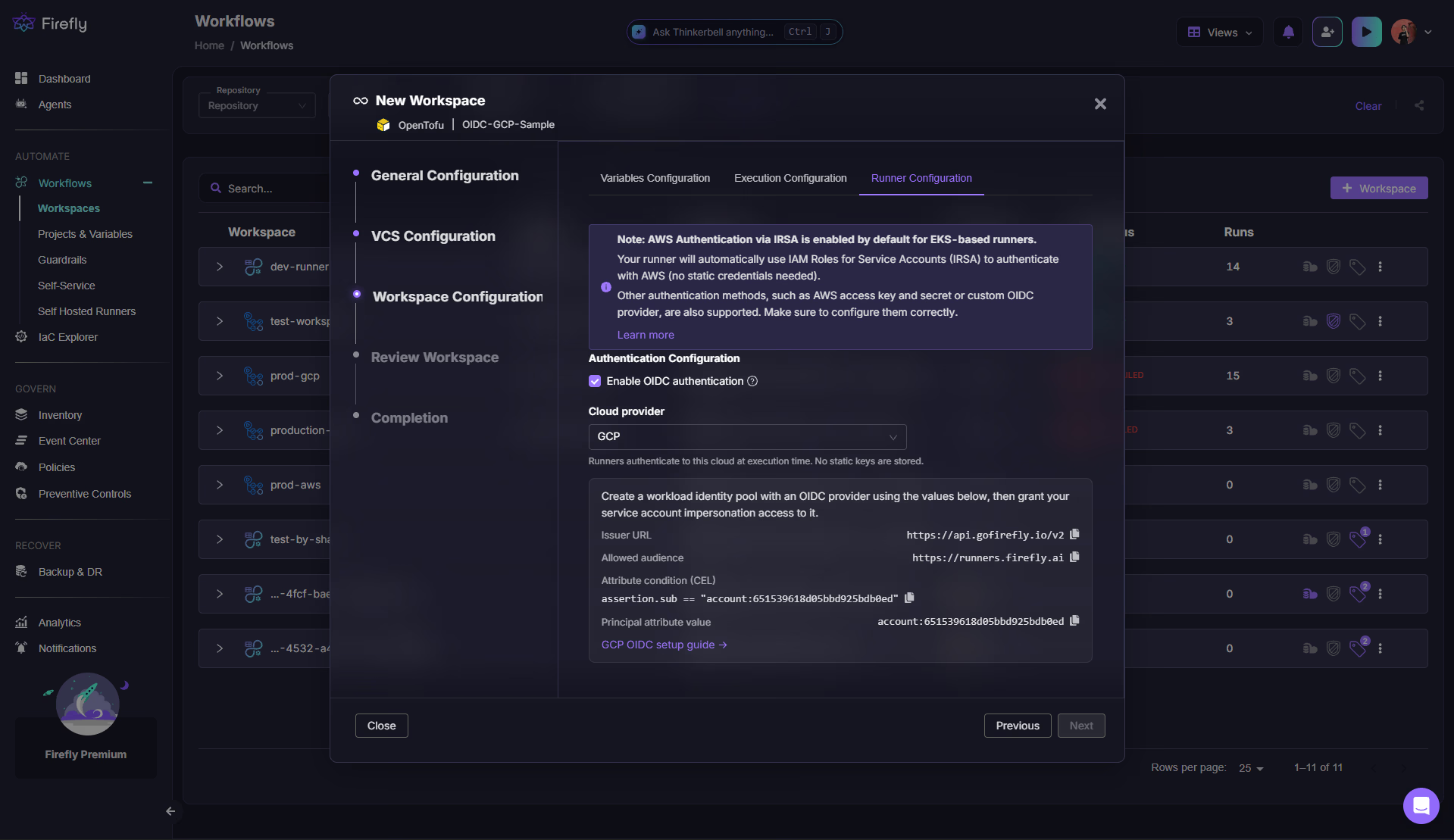
Collect two values from Firefly first. Open the workspace (or project) you're configuring, go to Workspace Configuration → Runner Configuration, check Enable OIDC authentication, and select Google Cloud as the provider. This panel shows the attribute condition and principal attribute value your Google Cloud setup needs, pre-filled and ready to copy. Leave this tab open; you'll come back to it in Part 2.
Part 1, in Google Cloud
Under IAM & Admin → Workload Identity Federation:
Step 1: Create an identity pool.
- Give it a name; the pool ID derives automatically from it (firefly pool becomes firefly-pool) and cannot be changed afterward.
- Deleted pool IDs stay soft-deleted for 30 days and can't be reused during that window, so check the derived ID before saving.
Step 2: Add an OIDC provider to the pool.
- Select OpenID Connect specifically, not AWS or SAML.
- For the issuer URL, use the exact value matching your Firefly environment: https://api.gofirefly.io/v2 for Production (the default environment most accounts use), or https://api.eu.firefly.ai/v2 for Production (EU), Firefly's explicitly EU-hosted environment. Include the /v2 suffix exactly, since that's the literal iss claim in the token, not just the domain. Firefly's naming doesn't distinguish these by continent beyond that, so confirm in your account settings which environment you're actually on rather than assuming.
- Leave the JWK file field blank, since Firefly's issuer is publicly reachable.
- Set the audience to exactly https://runners.firefly.ai under Allowed audiences, not Default audience. This value is fixed and identical across every Firefly environment and region, so you only need to configure it once.
Step 3: Configure provider attributes.
- Map google.subject to assertion.sub.
- Paste the attribute condition copied from the Firefly panel into the separate Attribute Condition (CEL) field, not into the mapping rows above it.
Step 4: Grant the Firefly identity permission to impersonate a service account.
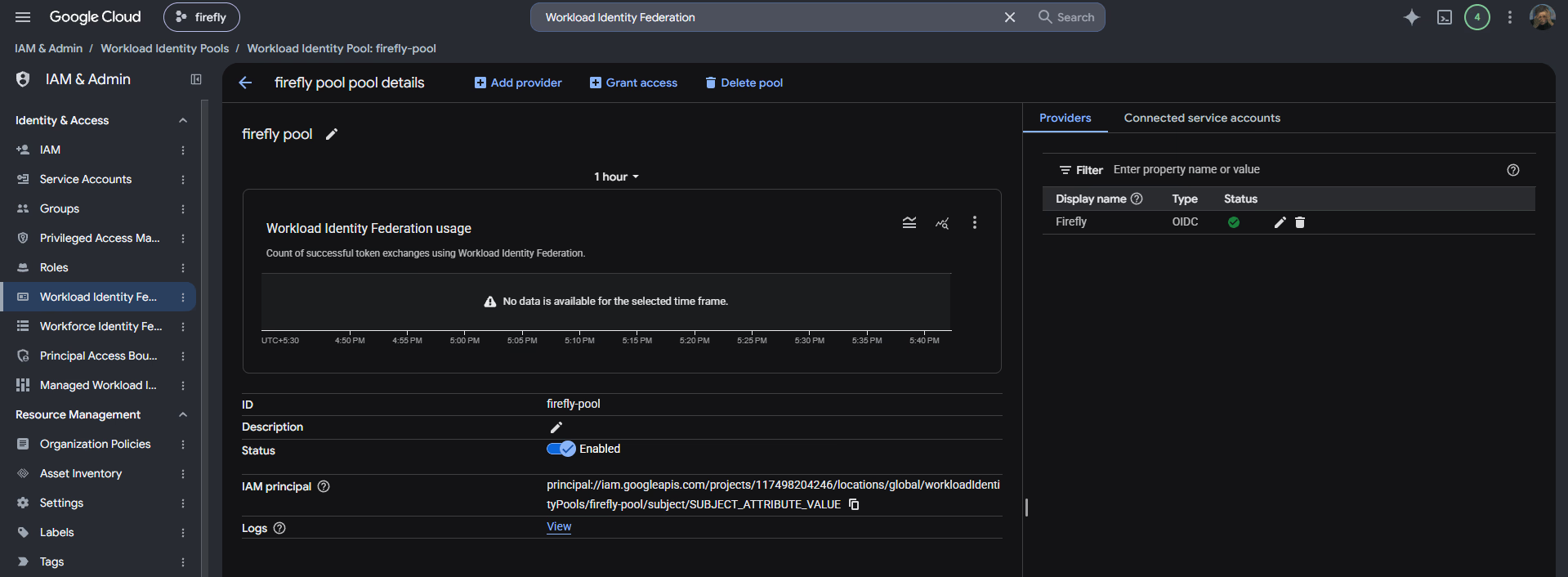
- From the pool's Connected service accounts tab, choose "Grant access using service account impersonation," not "using federated identities." The latter issues an Application Default Credentials file for direct client-library use; Firefly's runner instead writes an external_account credential config containing a service_account_impersonation_url, which specifically requires the impersonation grant.
- Select the service account you want Firefly to act as.
- Set the attribute name to subject and the attribute value to the principal attribute value from the Firefly panel.
Step 5: Grant that service account an actual role on the project.
- This happens on IAM & Admin → IAM, at the project level, a completely different screen than Step 4.
- Start with Viewer to confirm the setup works end to end, then broaden as needed. Firefly doesn't manage or prescribe this role; scoping it is your own IAM decision based on what your configuration actually touches.
Part 2, in Firefly
Back in the panel from earlier:
- Paste the workload identity provider's full resource path (using the project number, with the iam.googleapis.com/ host included at the front).
- Paste the service account email.
- Save. Configuring at the project level applies the same setup to every sub-project and workspace underneath; configuring at the workspace level scopes it to that one workspace.
A Terraform provider block for a workspace using this setup needs no credentials attribute at all, since Firefly writes the external_account file and points Application Default Credentials at it directly:
terraform {
  required_providers {
    google = {
      source  = "hashicorp/google"
      version = ">= 4.0"
    }
  }
}

provider "google" {
  project = "example-project"
  region  = "us-central1"
}
Workload Identity Federation support was added in hashicorp/google version 3.61.0, so that's the actual minimum; version 4.0 or later is recommended but not required if you're already on something newer than 3.61. The project value still has to be set somewhere, either directly in the provider block as shown above or through the GOOGLE_PROJECT environment variable; Firefly doesn't set this for you.
Working Across Multiple Google Cloud Projects
The pool, provider, and impersonation grant from Steps 1 through 4 live in a single project, but the service account they authorize can also be granted roles in other projects. If your configuration provisions resources across several Google Cloud projects, repeat only Step 5 in each one: grant the same service account an appropriate role on every project it touches, or grant it once at the folder or organization level if that broader scope is justified. You don't need to repeat Steps 1 through 4; one pool and one provider can serve many projects.
Common Misconfigurations Worth Avoiding Entirely
Most setup failures trace back to a small, repeatable set of causes, not anything genuinely obscure. The list below covers the ones worth checking first, in roughly the order they tend to show up.
- Skipping the project-level IAM role grant (Step 5 above). Workload Identity Federation and service account impersonation both work perfectly without it, which is what makes this one confusing to debug: everything about the identity setup checks out, and the run still fails with an error like the user does not have permission to access Project '<PROJECT_ID>' or it may not exist. Step 4 determines who may impersonate the service account; Step 5, on a separate screen, determines what that service account is actually allowed to do. Both are required.
- Setting credentials in the Terraform provider block, or GOOGLE_CREDENTIALS as a workspace variable. This silently overrides Application Default Credentials, and the run proceeds using that static credential instead, with no error indicating OIDC was bypassed. It shows up most often mid-migration; if you don't explicitly remove the old credential variable when moving a workspace off a static key, the migration looks complete while federation quietly isn't in effect.
- Leaving the /v2 suffix off the issuer URL. This is the literal iss claim in the token, not just the domain, and omitting it causes an issuer mismatch that only surfaces when a run actually fails.
- Leaving iamcredentials.googleapis.com disabled. Everything else can appear configured correctly while impersonation fails at runtime, since this specific API is what impersonation itself depends on.
- Entering the audience under Default audience instead of Allowed audiences, or entering anything other than the exact string https://runners.firefly.ai, causes token exchange to fail due to an audience mismatch.
- Using the project ID instead of the project number in the workload identity provider path, or omitting the iam.googleapis.com/ host from the front of that value. Both cause the path to be rejected as invalid.
- Applying an organization policy that restricts allowed issuer URIs without allow-listing Firefly's issuer. If constraints/iam.workloadIdentityPoolProviders is enforced, provider creation in Step 2 gets rejected outright regardless of project-level permissions; this requires a platform or security team to add the issuer URL to the org-level allow-list.
- Leaving project unset in both the provider block and the GOOGLE_PROJECT environment variable. Terraform will error that no project was specified, since Firefly deliberately doesn't set this value for you.
- Running a google provider version older than 3.61.0. Workload Identity Federation support doesn't exist before that version, so the provider can't use the credential file Firefly generates, regardless of how correctly everything else is configured.
Most of these share a common thread: the setup fails in a way that's either silent (no error at all) or misleading (an error that points at the wrong layer). Checking this list before troubleshooting from scratch is usually faster than working backward from the symptom alone.
Where Should You Start With This
If you're currently running Terraform against Google Cloud through a stored service account key, the first practical step is identifying which workspaces still reference that key directly, since those are the ones OIDC needs to replace, not just supplement. Start with a single, lower-risk workspace to confirm the full loop works end to end. Viewer-level access is enough to prove federation and impersonation work before broadening the role and rolling the same setup out to the rest of your Google Cloud workspaces.
Explore OIDC configuration in your Firefly workspace settings to see the exact values your account needs, or read the full Google Cloud OIDC documentation for the complete setup reference, including the troubleshooting table for every symptom covered in this piece.
FAQs
Why does my run fail with a permissions error even though OIDC looks correctly configured?
The most common cause is a missing project-level IAM role grant. Workload Identity Federation and service account impersonation are configured on one screen; the actual IAM role the service account needs on the project is configured separately, and nothing in the setup flow requires you to complete both.
Why would a run succeed but not actually be using OIDC?
If credentials is set in the Terraform provider block, or GOOGLE_CREDENTIALS is set as a workspace variable, it silently overrides Application Default Credentials and the run proceeds using that static credential instead, with no error indicating OIDC was bypassed. This is worth checking explicitly when migrating a workspace off a static key.
What is Workload Identity Federation?
It's Google Cloud's mechanism for trusting an external identity provider directly, letting a workload authenticate using a short-lived token from that provider instead of a Google-issued credential. Google Cloud validates the token against a registered provider and exchanges it for temporary, scoped Google Cloud credentials, with nothing long-lived stored on either side.
Why is a stored service account key considered a security risk?
Because it's long-lived by default, doesn't expire on its own, and depends entirely on someone remembering to rotate or revoke it. It's also a file, so it can leak through a committed repository, a CI log, or simple mishandling, and its permissions tend to accumulate over time rather than staying scoped to current needs.
How short-lived are the temporary credentials issued through this exchange?
Typically minutes, not hours or days. Google Cloud's Security Token Service issues credentials scoped to a short validity window tied to the run itself, so even if a credential were somehow intercepted, it would already be expired or close to it by the time it could be reused, a fundamentally different risk profile than a static key that stays valid indefinitely.


.webp)


.webp)